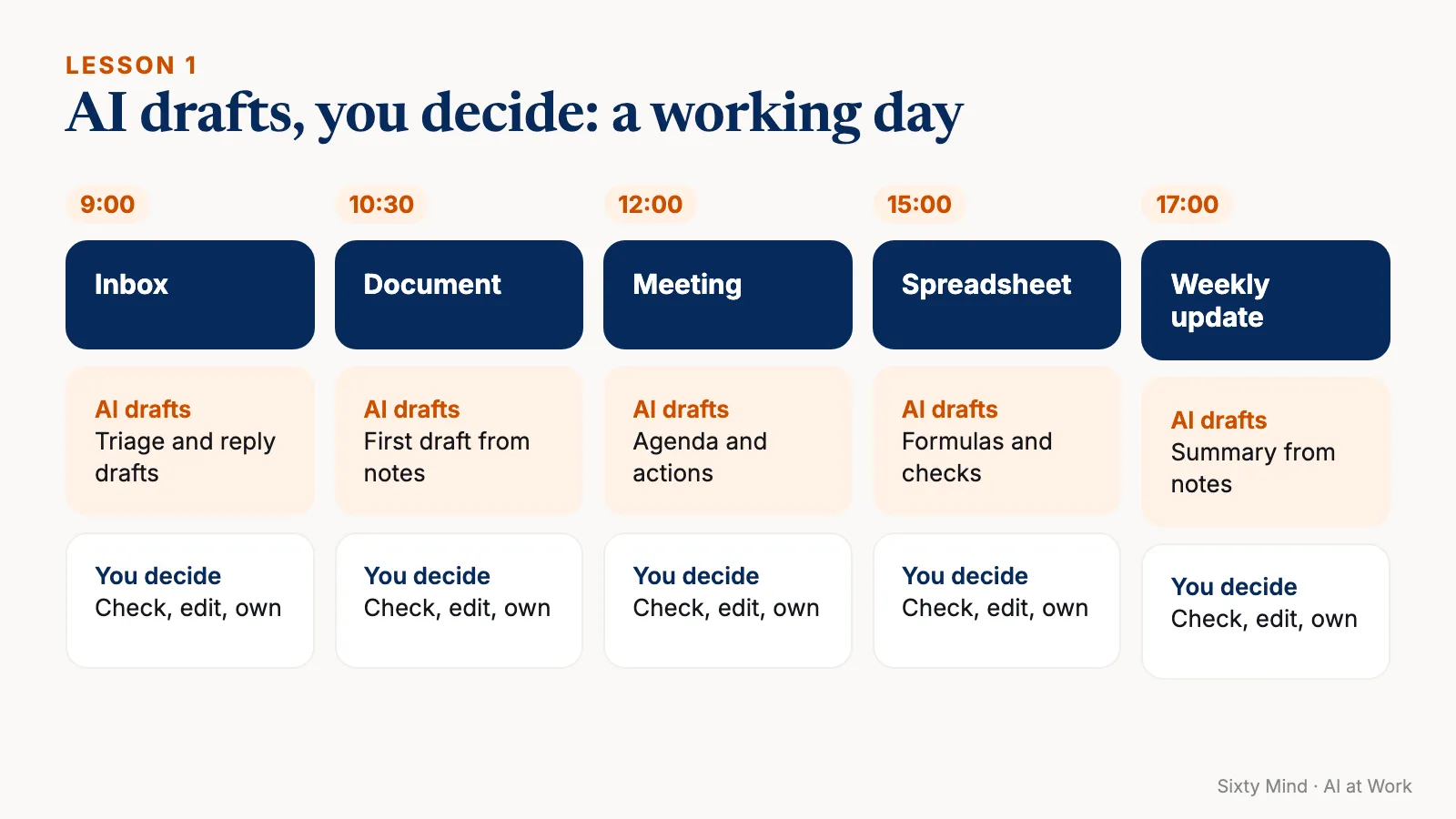
This course is for people who already know their job and want to do the routine parts of it faster and better. You do not need to be technical. You will work through email, documents, slides, spreadsheets, meetings and weekly reporting, and in each one you will run real prompts on real (but safe) work. By the end you will have a small, tested work assistant kit: eight reusable prompts and a checklist for one workflow you actually do every week, plus an honest measure of the time it saves.
One idea runs through every lesson: AI drafts, you decide. An assistant is very good at producing a first version, rewriting for a different reader, summarising a long thread and explaining something unfamiliar. It is weak at knowing facts you did not give it, understanding your company's politics, and doing arithmetic it was not asked to show. So you give it context, it gives you a draft, and you check and own the result. That habit is what separates people who get value from AI at work from people who get embarrassed by it.
To keep things concrete, the examples follow four people at a mid-sized company. An HR executive who writes policy announcements, job descriptions and onboarding guides. A sales manager who chases follow-ups, prepares pipeline reviews and drafts proposals. An operations analyst who lives in spreadsheets and sends a weekly performance report. A project coordinator who runs meetings, tracks actions and keeps the project wiki tidy. Pick the one closest to your role, but read the others too: most of the techniques travel well between jobs.
Built-in assistants live inside the tools you already use: Microsoft Copilot in Outlook, Word, Excel, PowerPoint and Teams, or Gemini in Gmail, Docs, Sheets, Slides and Meet. If your company has switched them on, they can see the email or file you have open, which makes them convenient. General chat assistants such as ChatGPT, Claude, Gemini or Copilot chat only see what you paste or upload, so they need more context but work with anything. Specialist tools such as Gamma for decks, Otter.ai for meeting notes and Notion AI for team wikis do one job in depth.
Which one you use depends less on which is cleverer and more on two practical questions: what has your company approved, and where does the data already live? Features, limits and availability differ between versions and between what your administrator has enabled, so if a button described in this course is missing, check the current version of the tool or ask your IT team. Every prompt in this course also works in a plain chat assistant, so you are never stuck.