
Email becomes exhausting when every message demands a fresh decision. The work is not only typing. It is deciding what the sender wants, finding the right context, choosing a response, checking the promise hidden in the wording, and deciding whether the message should be sent at all. An AI email workflow can reduce that preparation, but only if it supports judgement instead of quietly replacing it.
The useful model is not “let AI handle my inbox”. It is a sequence: collect, classify, gather context, draft, edit, and send. Each stage has a different risk. A tool may be perfectly suitable for turning rough notes into a polite reply while remaining unsuitable for making commitments to a customer. The goal is a faster first draft that still sounds like the person who will sign it.
Start with the job hidden inside each message
An inbox is not a to-do list. It is a mixed stream of requests, information, invitations, receipts, reminders, sales messages, and conversations that may not require a reply. Before adding AI, define the jobs you want the workflow to support. A useful first group might include drafting routine replies, extracting follow-up tasks, shortening long messages, preparing a list of unanswered questions, and identifying messages that need a personal response.
Do not begin with the broad instruction “manage my email”. That phrase hides too many decisions. A better instruction describes the visible result: “Prepare a reply draft for messages asking about delivery dates, using the approved shipping policy, and flag any request that needs a custom promise.” The narrower job is easier to test because you can inspect both the source message and the proposed result.
The workflow should also know what it must not do. It should not invent a delivery date, approve a refund, reveal another customer’s information, unsubscribe from a service without permission, or send a reply merely because a message looks routine. A clear boundary is more valuable than an impressive demonstration.
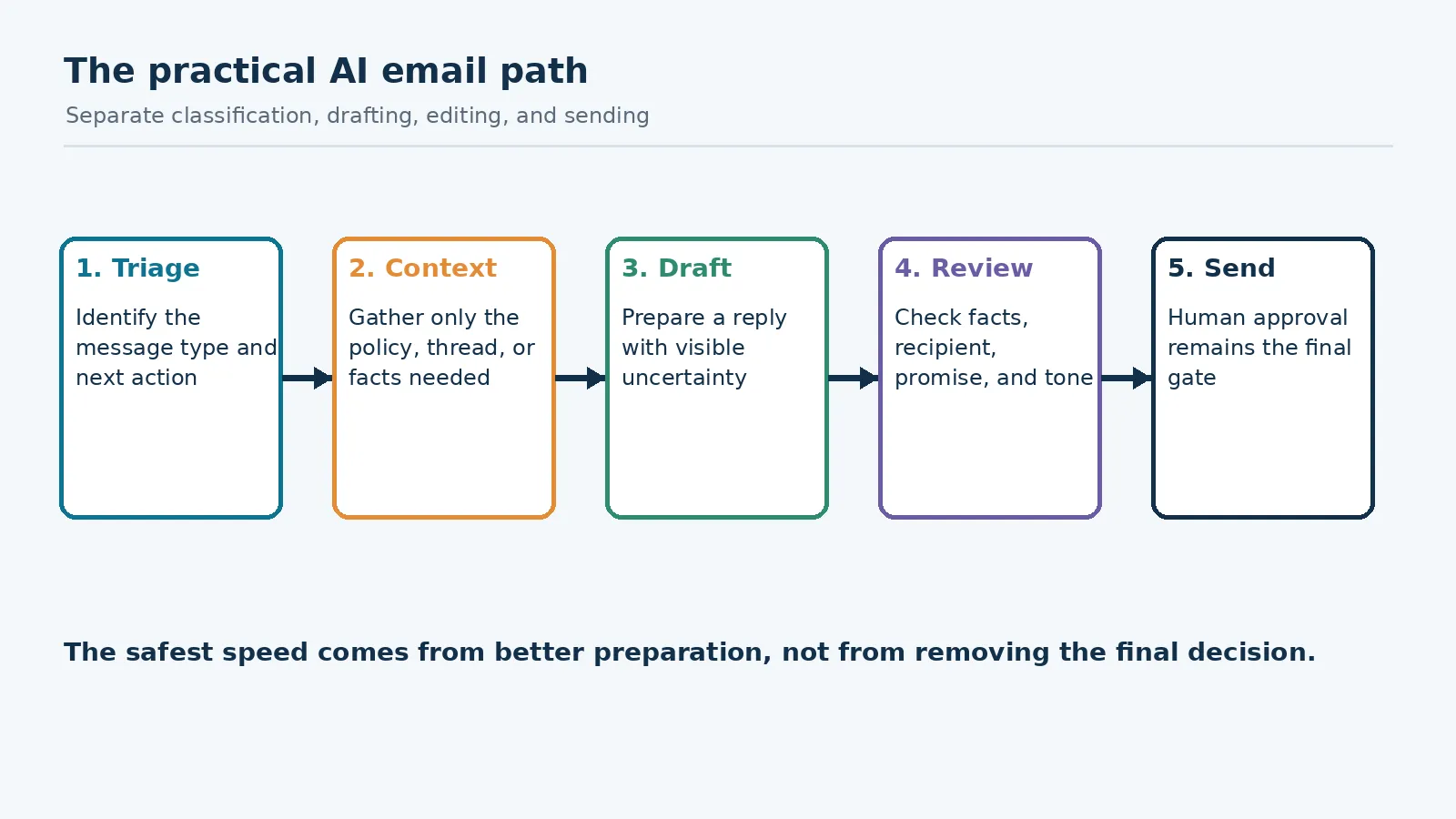
The safest email workflow keeps review between the draft and the send action.
Separate triage from drafting
Triage asks what a message is and what happens next. Drafting asks how to express the next step. Combining both tasks in a single instruction makes errors harder to spot. If the system misclassifies a complaint as a normal enquiry, a fluent draft will not repair the mistake.
Create a small set of labels that reflect your work. You might use “reply today”, “waiting for information”, “delegate”, “read later”, “record only”, and “no action”. The labels do not need to match a software feature. Their purpose is to give the workflow a stable vocabulary.
Ask the system to explain its classification in a short note. “Reply today because the message contains a customer deadline” is more useful than a silent label. The explanation may be wrong, but it gives the owner something to challenge. Keep the message itself visible during review so that the summary never becomes a substitute for the original.
Build a context packet before asking for a reply
Weak email drafts often fail because the model lacks the information needed to write a reliable reply. It may know that a customer is asking for an update but not know which order, deadline, policy, or previous promise applies. The answer then sounds confident while leaving the important fact unresolved.
A context packet can contain the relevant message, the approved policy, the customer or colleague’s name, and the known status. It can identify the available action and any detail that must not be promised. Keep the packet small. More material does not automatically produce a better answer. Irrelevant thread history can bury the detail that matters.
Google’s Gmail documentation says that Help me write can create a draft or refine existing text for tone and clarity. It also recommends specific prompts that identify the recipient, subject, required action, tone, and relevant email or file. [1] That guidance supports a practical habit: supply the information needed for this reply rather than asking a general assistant to search your entire history without a clear purpose.
When a message depends on a document, identify the document by name and version. If the supporting source is unclear, tell the reviewer to check it before sending. Do not let the assistant rely on an old price list, an expired policy, or an incomplete project note when writing a new commitment.
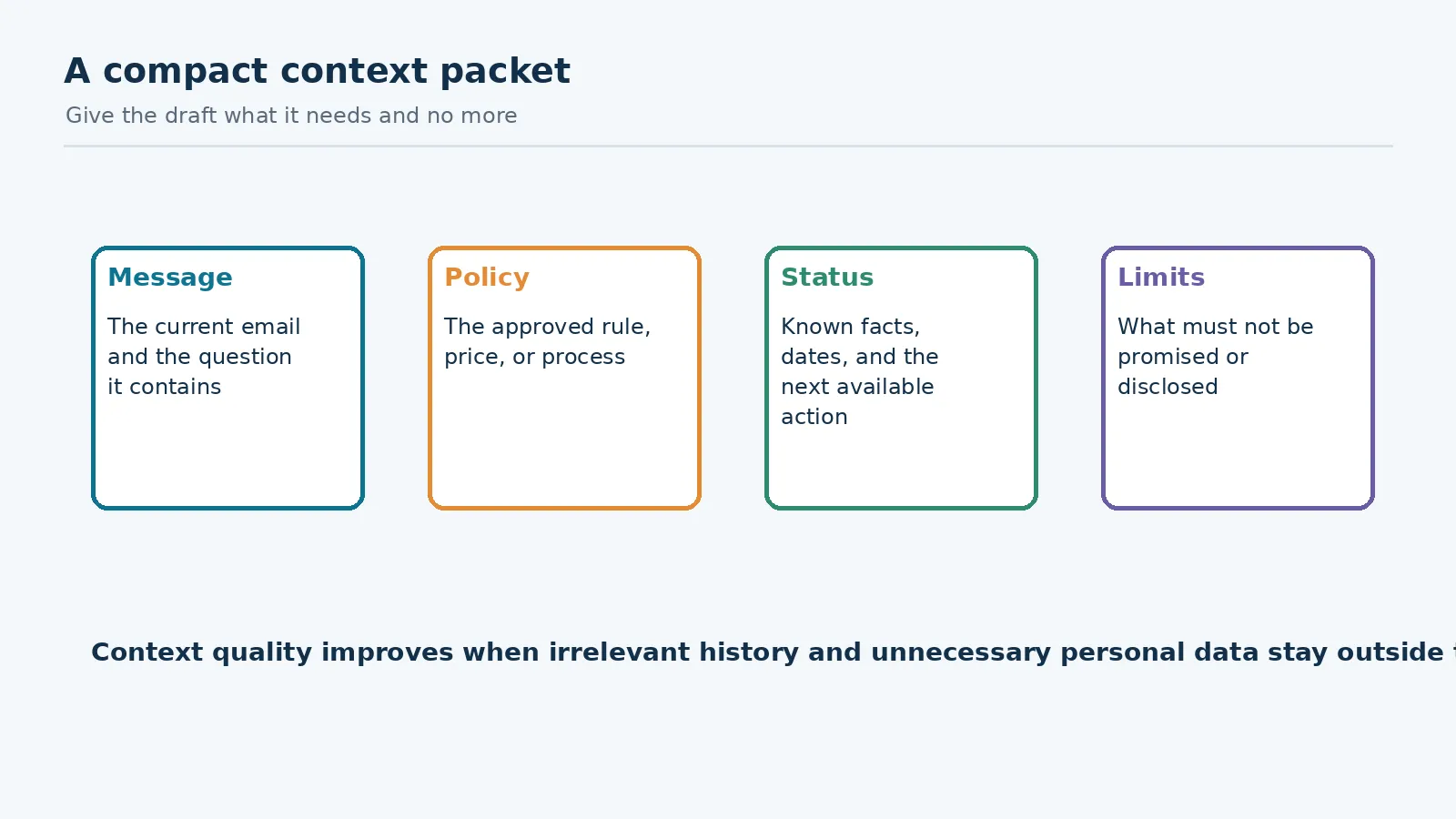
Relevant context improves a draft, while unnecessary history and personal data increase the review burden.
Give the draft a voice guide, not a personality performance
“Sound like me” is too vague to produce consistent results. Write a short voice guide that describes observable choices. For example, use plain language, open with the answer, avoid exaggerated enthusiasm, keep paragraphs short, explain the next step, and sign off warmly without sounding casual. Add words or phrases that should never appear.
A voice guide should also explain how the writer speaks to different readers. A reply to a long-term client may be warmer than a first response to a supplier. A complaint requires acknowledgement and ownership, while a routine confirmation may need only two sentences. The aim is not to create a fictional personality. It is to make the writer’s normal decisions easier to reproduce.
Test the guide on messages with different emotional temperatures. Give the system a neutral enquiry, an impatient follow-up, a request with missing information, and a message containing an unreasonable demand. Compare the drafts with examples that the owner considers good. Keep the guide only when it improves consistency without flattening every reply into the same pattern.
Ask for a draft with visible uncertainty
A useful email prompt tells the system what to include and what to leave unresolved. Ask for a subject line, a short reply, the next action, and a list of facts that need verification. Instruct it to use placeholders when a detail is missing rather than guessing.
For example, a customer-service prompt might say: “Draft a concise reply using the approved returns policy. State what we know, identify the information still needed, and do not promise a refund until eligibility has been checked.” A project prompt might request a progress summary, the next decision, and a proposed meeting time without allowing the system to confirm the appointment.
The draft should make its source visible to the reviewer. If the answer comes from a policy, show the policy name. If it depends on a previous email, identify that thread. If the system cannot point to supporting material, treat the sentence as a suggestion rather than a verified fact.
Keep editing as a separate human stage
A draft is not a message ready to send. Edit it in a deliberate order. First check the facts. Then check the recipient and attachments. Next, examine the promise, tone, and next action. Read the message again from the recipient’s perspective, especially when it concerns money, deadlines, dissatisfaction, or private information.
Microsoft’s Outlook documentation describes a workflow in which Copilot generates a draft, offers changes to tone or length, and then expects the user to review, keep or discard, edit, and send the result. [2] The lesson applies beyond Outlook: generation and sending are separate actions.
Use a short review checklist. Does the draft answer the actual question? Is every date confirmed? Does “we will” describe an approved commitment? Is the message addressed to the right person? Has the system added a claim that no source supports? Are the requested files attached? A checklist catches different errors from a spellchecker.
Protect your voice by editing the structure, not only the adjectives
People often try to preserve their voice by removing words such as “delighted” or “exciting”. That is useful, but voice also appears in structure. Some writers answer first and explain second. Others begin with context, then give a decision. Some use a brief sign-off, while others add a clear invitation to reply.
Compare an AI draft with a small set of messages you have actually sent and would willingly send again. Look for patterns in openings, paragraph length, level of detail, directness, and sign-offs. Turn those observations into rules. Do not upload an entire mailbox merely to create a style sample. Select representative messages, remove unnecessary personal details, and keep the examples in a controlled location.
If the draft feels unlike you, do not ask for “more human” wording. Name the change: shorten the opening, remove sales language, state the answer in the first sentence, or use a warmer closing. Specific feedback produces a more useful revision.
Automate preparation before you automate sending
The safest early automation prepares work for review. It can label an incoming message, extract a task, suggest a reply, or place a draft in a review folder. A person then decides whether the draft is accurate and whether the conversation needs a different response.
Automatic sending is a separate category. It can be reasonable for a narrow acknowledgement, such as confirming that a form was received, when the wording is fixed and the consequences are small. It is much riskier for complaints, negotiations, cancellations, payment questions, legal matters, or messages that contain personal data.
Use a permission ladder. At the first level, the assistant may read a copied message and produce a draft. At the next level, it may read a defined mailbox and save drafts. Give the assistant permission to send only after testing; even then, limit the recipients, templates, and triggers. Do not grant broad access because a connection is convenient.
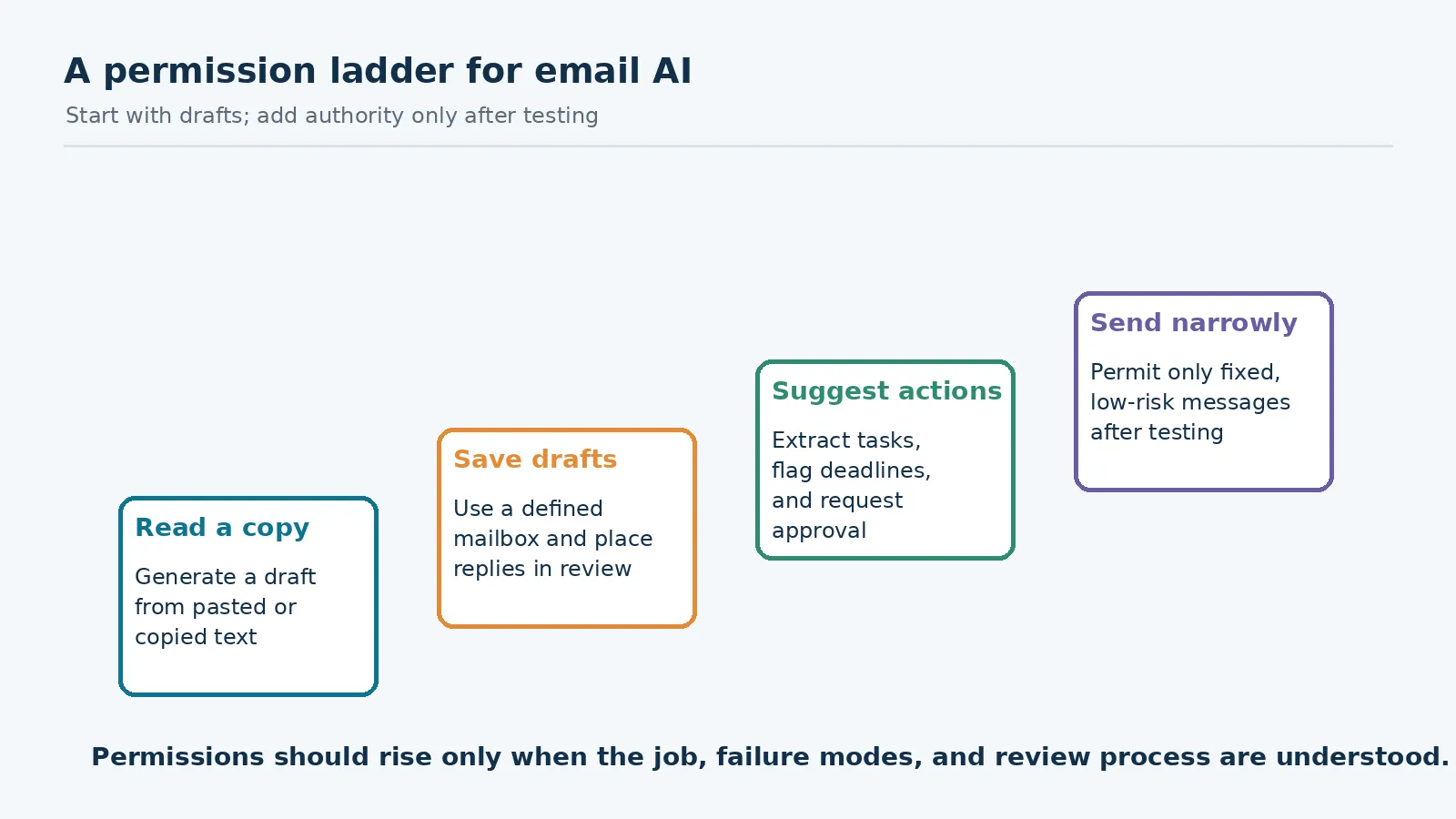
Begin with draft assistance and increase email permissions only after the workflow has been tested.
Use product controls without assuming they remove responsibility
Google says that Gmail’s Help me write may use details from other emails and Drive files to personalise a draft, and it provides a Sources control to show material used for that personalisation. [1] That can improve relevance, but it also means the owner should understand which connected information the tool can access. A private note or old document may influence a reply without being obvious from the final wording.
Those product-specific privacy commitments should not be generalised to every email plug-in or consumer AI service. Check the product’s current terms, account type, administrator settings, and retention options before connecting a mailbox.
The UK Information Commissioner’s Office guidance covers accountability, transparency, lawfulness, accuracy, fairness, security, and data minimisation for AI systems. The guidance is under review following changes made by the Data (Use and Access) Act, so treat it as general guidance rather than a substitute for advice about a specific processing activity. [3]
Measure the workflow by corrections and commitments
Do not judge an email system by the number of drafts it creates. Record how long review takes, how often the owner rewrites a draft, how often the source is missing, and how many messages need escalation. Track serious failures separately from harmless style edits. A changed greeting is not equivalent to an invented price or an incorrect promise.
Run a small trial with representative messages. Include routine enquiries, long threads, ambiguous requests, emotional language, missing attachments, and messages that contain confidential details. Remove or mask information when real content is not necessary. Compare the AI-assisted process with the previous manual process, including the time spent checking the result.
Review the trial at the end of the week. Keep the workflow if it reduces preparation without weakening accuracy or voice. Narrow the job if it works only for one message type. Stop using it if checking takes longer than the time it saves. A controlled system that handles fewer messages can be more valuable than a broad system that creates a constant stream of repairs.
A practical daily email rhythm
Begin by separating urgent commitments from messages that can wait. Gather the relevant source material for the small group that needs a reply. Ask AI for drafts with clear limits, review each draft against the message and its supporting source, and make the final changes yourself.
At the end of the day, record unusual corrections. Did the system misunderstand a product name, confuse two customers, repeat an outdated promise, or use a tone that damaged the relationship? Add the lesson to the prompt, voice guide, source register, or review checklist rather than hoping the next draft will somehow improve.
A practical AI email system is not a faster way to avoid reading. It is a method for making the reading and decision-making more deliberate. Let the tool handle sorting, formatting, and first drafts. Keep facts, commitments, relationships, and the final send under the control of the person whose name appears at the bottom.