AI Video and Voice: Scripts, Clips, Voiceovers and Music
Your AI video and voice toolkit, organised by job
Course Syllabus
0 of 37 complete0%
Lesson 1 of 37
Your AI video and voice toolkit, organised by job
Why it matters
One person, one phone, one weekly video
Picture the owner of a small coaching business. She knows a short video every week would help people find her, but she has no crew, no studio and about three hours a week. AI tools will not make the video for her. They can, however, shrink each job in the process: drafting the script, making b-roll, cleaning the audio, adding captions. That is what this course teaches.
Most people approach AI video the wrong way round. They open a flashy text-to-video tool, type 'make a video about my business', and get eight seconds of something pretty but useless. Good short videos are not made in one step. They are a chain of small jobs: deciding the message, writing the words, planning the shots, producing the pictures and sound, editing, captioning, labelling and publishing. AI is most useful when you give it one job at a time, with clear instructions, and keep the creative decisions yourself.
In this course you will learn that chain end to end. We will follow four running examples so you can see the same skills in different settings: a small coaching business selling one-to-one sessions, a local restaurant that wants more weekday diners, an educator turning lessons into bite-sized clips, and a startup founder explaining a new product to early customers. Pick the one closest to your own situation, or swap in your own project as you go.
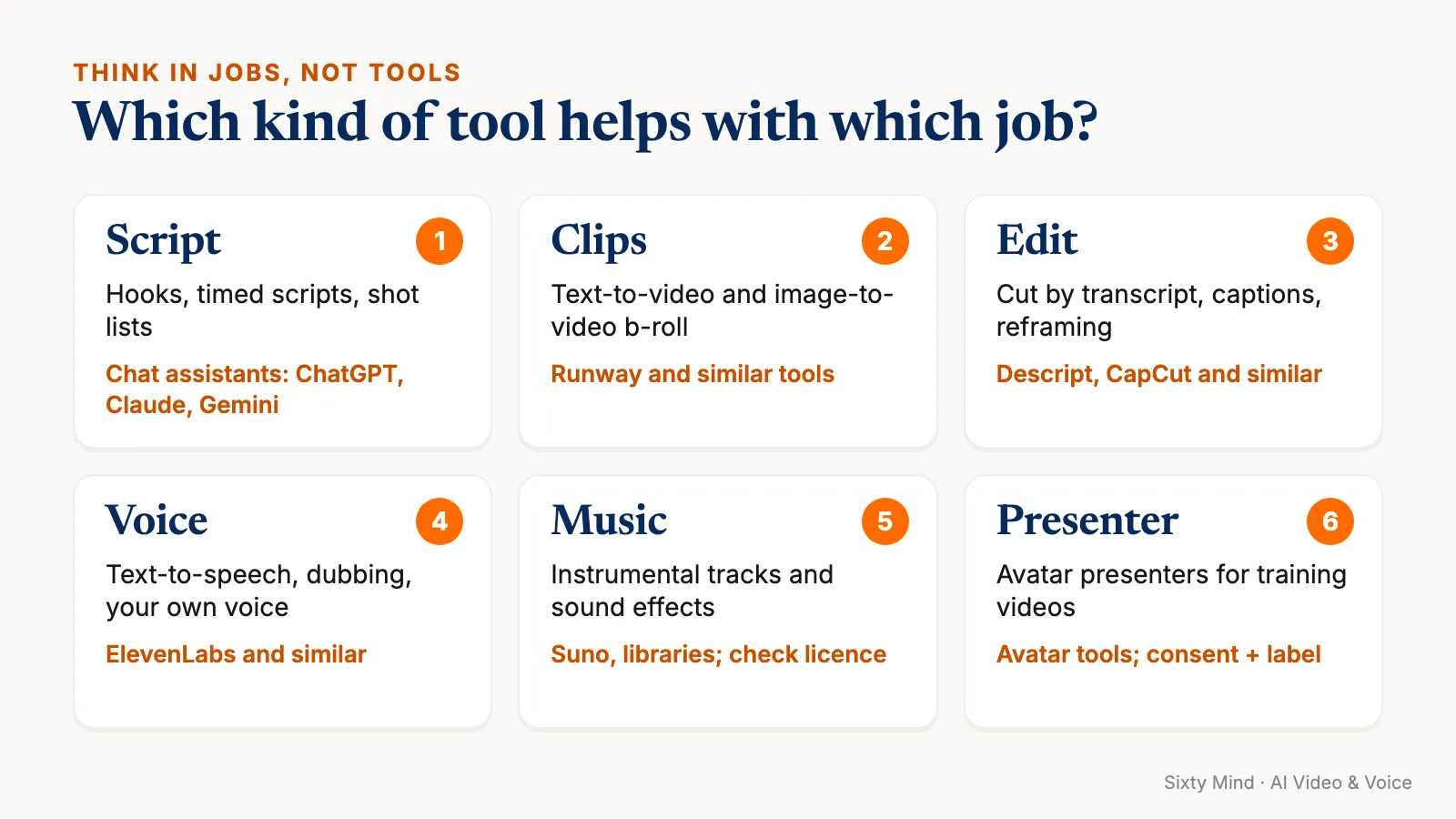
Think in jobs, not tools: each stage of a short video has a different kind of AI helper.
The six jobs and the tools that help
Scripting and planning. Chat assistants such as ChatGPT, Claude and Gemini are good at brainstorming hooks, drafting scripts to a word count, turning a script into a shot list and checking your work against a brief. Generating clips. Text-to-video and image-to-video tools such as Runway and similar products turn a written description, or a still image, into a short moving clip. They are useful for b-roll, abstract visuals and scenes you cannot easily film.
Editing. Tools such as Descript and CapCut let you edit video by editing its transcript, remove filler words, add captions and reframe for vertical screens. Voice. Text-to-speech tools such as ElevenLabs and similar products read a script aloud in a chosen voice, and many can translate or dub. Music and sound. Generators such as Suno can create backing tracks from a description, and many editors include sound-effect libraries. Presenters. Avatar tools create a talking on-screen presenter from a script. They can be handy for training videos, but they raise the biggest questions about consent and disclosure.
Notice that no single tool is 'the one'. Products change features, limits and pricing often, so this course teaches the job and the thinking behind it. When a feature matters, check the current version of the tool you use. Many tools overlap: an editor may also generate voices, and a voice tool may also make sound effects. Choose by asking 'which job do I need done next, and what is the simplest tool that does it well enough?'
A quick word on avatar and presenter tools, because they look like a shortcut. They can read a script with a synthetic face, which suits internal training, multilingual product walkthroughs or FAQs. For a coach, a restaurant or a founder whose audience wants to see the real person, an avatar can feel distant and may reduce trust. If you use one, choose a stock avatar the platform licenses for your use, never build one from someone's likeness without written consent, and label it clearly as AI-generated.