
Why these three tools work well together
Email, calendars, and spreadsheets often contain the information a small business uses every day. Email holds requests and decisions. A calendar shows availability and commitments. A spreadsheet may contain leads, stock counts, project details, or a simple financial tracker. An AI agent can connect those pieces and reduce the copying that slows routine work.
Imagine a prospective customer asking for a meeting. The agent could read the message, identify the request, check approved availability, and prepare a row in a lead sheet. It might also draft a reply with two suitable time options. That workflow can save several small actions, but it should not begin with unrestricted access to every mailbox, calendar, and file.
A connection gives software a route into business information. The agent’s quality matters, but the access design matters just as much. Even a system that understands a request needs clear limits on what it may read, create, edit, and send.
Choose one useful job before connecting any tool
Start with a narrow workflow
Do not begin with the vague instruction to “manage my work.” Choose a task that has a clear starting event and a visible result. Good first examples include sorting new enquiries, preparing follow-up drafts, checking availability, or copying selected form details into a review sheet.
State the workflow in a single sentence. For example: “When a message arrives in the enquiries folder, prepare a draft reply and add the sender’s details to the review sheet.” That sentence gives the connection a purpose. It also makes it easier to decide which permissions are necessary and which ones are not.
A useful first version should prepare work rather than complete the final action. The agent can create a draft, suggest a meeting time, or add information to a test sheet. A person can inspect the result before anything reaches a customer.
Decide which actions the agent must avoid
List the actions that remain off limits. An email agent may not send messages, delete threads, change mailbox settings, or read unrelated folders. A calendar assistant must not cancel appointments or invite external guests without confirmation. A spreadsheet connection may not alter formulas, share a file, or overwrite protected columns.
These exclusions are not a sign that the workflow has failed. They are part of its design. A small task with clear boundaries is easier to test than a broad assistant that has access to every business system.
Understand the connection screen
Most modern integrations use an authorisation screen. It asks you to sign in and approve the data or actions an application wants to use. The wording can look technical, but the important question is simple: what will this connection allow the agent to do?
Google’s OAuth scope guidance explains that scopes define the access an application requests. It recommends choosing the narrowest scope possible and avoiding access the application does not need. Read the consent screen as a permission review before approving the connection.
Some scopes are more sensitive than others. Access to a small set of messages is different from permission to read, compose, send, and delete all email. If a public application uses certain user-data scopes, it may also need to complete a verification process. The requirements vary by provider, application type, and data involved.

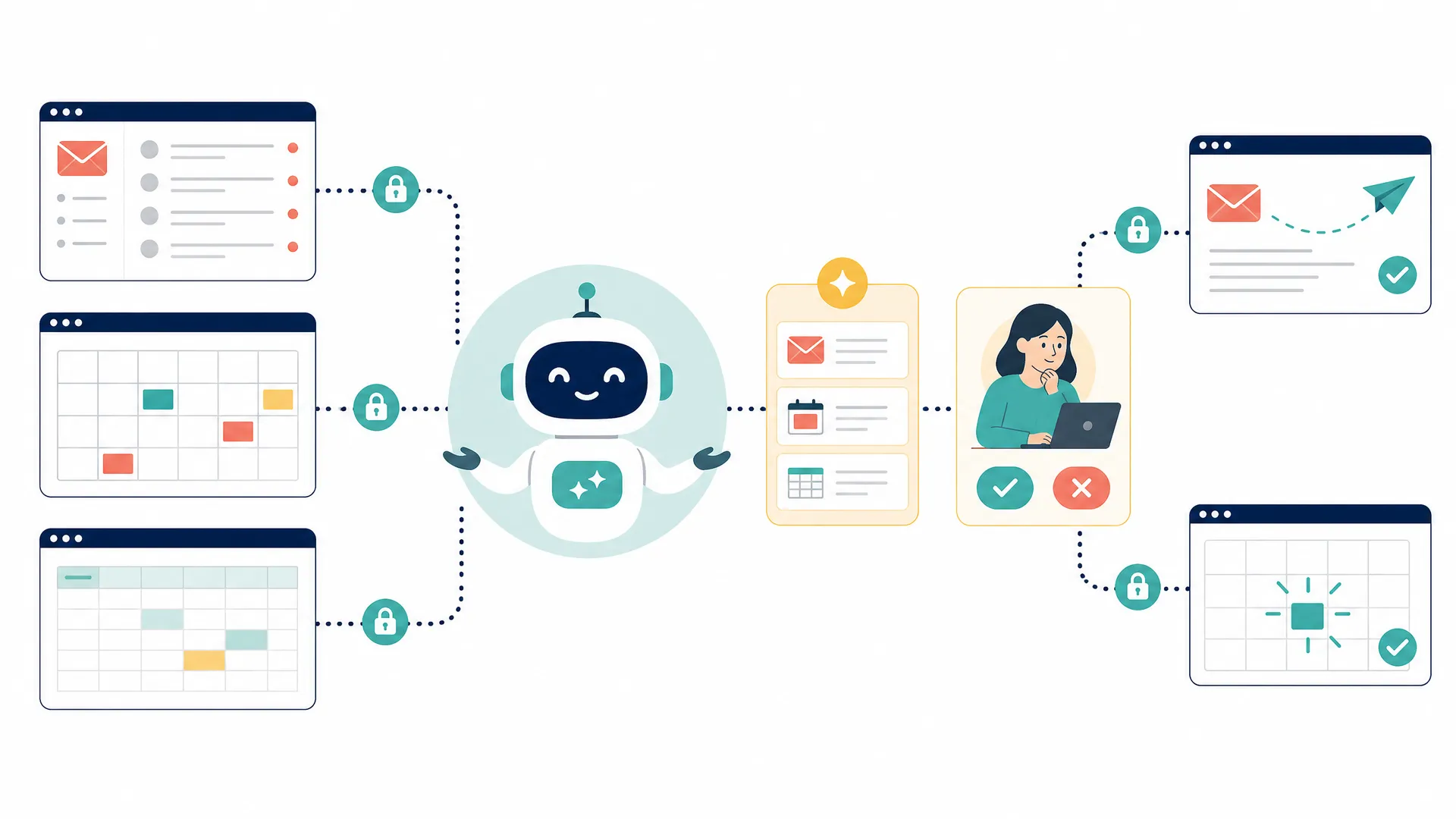
The connection review should show data access, draft creation, and approval decisions together.
Connect email safely
Begin with a focused mailbox or folder
An agent rarely needs your entire mailbox for a useful first workflow. Create a label or folder for the messages it should process. New enquiries, support requests, or supplier updates are suitable for a first experiment. Keep private conversations, legal correspondence, payroll messages, and personal mail outside the connection.
A focused source also improves the agent’s results. With fewer unrelated threads, the system is less likely to confuse a newsletter with a customer request. Employees can also review its reading more easily.
Choose reading, drafting, and sending separately
Email permissions often cover different levels of activity. Gmail’s API documentation separates limited actions from wider access that can view messages, manage drafts, send email, or modify mailbox content. The names vary between services, but the principle remains the same: reading a message is not the same as sending a reply.
Start by allowing the agent to read selected messages and prepare drafts. Keep sending disabled until the team has reviewed several examples. When sending becomes necessary, use a separate approval step or restrict the workflow to a known template and a controlled recipient group.
Do not let the agent change filters, forwarding settings, labels across the entire mailbox, or deletion rules unless the task genuinely requires those actions. A connection that can quietly redirect mail creates a much larger risk than one that can prepare a reply.
Protect the human voice
An agent can produce a grammatically correct reply that still sounds wrong for the business. Give it approved examples, tone guidance, and a short list of promises it must not make. Ask it to show the source of important details, such as prices, delivery dates, or refund conditions.
A person should review messages that contain commitments, complaints, sensitive details, or unusual requests. The goal is not to inspect every low-risk draft forever. The early reviews should show where the workflow still needs human judgment.
Connect a calendar without giving away control
Start with availability
Calendar access comes in several levels. An agent may only need to check free and busy periods. It may not need to read meeting titles, attendee names, notes, or private event details. Google’s Calendar API guidance lists separate scopes for availability, read-only events, event editing, and broader calendar management.
For a scheduling assistant, availability is usually the safest starting point. The agent can suggest two or three possible times without learning the contents of every appointment. If the workflow needs event details, limit the connection to the calendars and event types that support the job.
Keep event changes behind approval
Moving a meeting, cancelling an appointment, or inviting an external guest can affect several people. Let the agent prepare the proposed change and show the reason for it. A person should confirm the final action, especially when the event involves a customer, interview candidate, supplier, or senior colleague.
Check time zones, working hours, travel buffers, and recurring events during testing. A time that appears free may still be unsuitable because of a local holiday or an appointment recorded in another system.
Connect spreadsheets with field-level care
Spreadsheets look simple, but they often mix raw data, formulas, notes, permissions, and reports within the same file. Give the agent access to a dedicated tab, a filtered view, or a separate working sheet when possible. Keep formulas, totals, payroll information, and confidential notes protected.
Decide whether the agent may read or write
A read-only connection can summarise rows, find missing values, or identify records that need attention. A write connection can add a new row or update a field. Those are different risks. If the agent only needs to prepare a lead for review, it should not be able to rewrite the full workbook.
Use fixed columns and clear field descriptions. Tell the agent what counts as a valid date, phone number, status, or follow-up owner. When a value does not fit the expected format, place it in a review queue instead of guessing.
Keep a backup or version history before testing write access. Test duplicate submissions, empty cells, unexpected characters, and rows that contain formulas. Confirm that the agent adds information to the intended range rather than shifting existing records.
Understand Microsoft and Google permission models
Microsoft describes two ways an app can access data. Delegated access lets the app act under a user’s sign-in. The app stays within that user’s existing rights. An application can also work without a person signed in. Its access depends on the role assigned to it. Microsoft Graph’s permissions overview explains these two models.
For a small-business workflow, a connection for one signed-in user is often easier to control than a background application with organisation-wide access. The right choice depends on the platform and the job. Ask an administrator or security specialist before approving access to company-wide mail, calendars, or files.
A familiar label does not guarantee narrow access. Compare the provider’s description with the workflow you defined earlier. If the connection asks for more access than the job needs, stop and choose another integration or reduce the scope.
Test the connection with sample data
Create a small test set before using real customer information. Include a normal email, a message with missing details, a private message that should be ignored, a calendar conflict, an empty spreadsheet row, and a value in the wrong format.
Check the agent’s access first. It should read only the intended source, create the correct draft, suggest a realistic time, write to the correct sheet, and pause outside its role. Try a send, a calendar change, and a broad spreadsheet edit. The system should block each action or request approval.
Record the result of each test. Note the source used, the proposed action, the reviewer’s decision, and any change made to the instructions. This record will help when the workflow changes or another employee takes responsibility for it.
Maintain the connection after launch
Connections need regular review. Recheck them when the agent receives a new tool, when the folder structure changes, when an employee leaves, or when the workflow starts handling a different type of information. Remove access that the agent no longer needs.
Look at activity logs for unusual reads, unexpected recipients, repeated failures, and edits outside the normal range. If the provider offers an access review or connected-apps page, use it to revoke abandoned connections. Keep a note of who approved the integration and when it should be reviewed again.
Conclusion
Connecting an AI agent to email, calendar, and spreadsheets can remove repetitive copying from everyday work. The safest path is gradual. Define one job, choose one source, start with read-only access, and let the agent prepare results before it can send or change anything.
Read every permission screen carefully. Separate email reading from sending, calendar availability from event editing, and spreadsheet analysis from workbook changes. Test with sample data, keep an approval step for important actions, and review the connection as the business changes.
The best workflow is not the one that gives an AI agent control of every tool. It is the one that saves time without making the business lose track of its information or decisions.
References
- The Google OAuth 2.0 scopes guide explains how applications request different levels of access to Google APIs.
- The Gmail API scopes guide describes Gmail access levels, including message viewing, drafting, sending, and broader mailbox actions.
- The Google Calendar API scopes guide lists separate scopes for availability, event viewing, event editing, and calendar management.
- The Microsoft Graph permissions overview explains delegated access, application access, and how to choose a limited permission set.
- Editorial note: Provider names, permission labels, verification requirements, and product capabilities can change. Check the current documentation and your organisation’s policies before connecting an AI agent to live business data.